How it works
Every auction has a TV link: cricketauctionlive.com/tv/ followed by your auction's id. It shows the live overlay full screen, on a background you choose, with no cursor or controls, and keeps the screen from going to sleep. The player card, current bid, countdown, SOLD stamps, sponsors, team purses and the summary all update within a second of a bid, from the control panel or a team owner's phone.
You never need to touch the TV during the auction. The control panel stays on your phone, tablet or laptop, and the TV follows it.
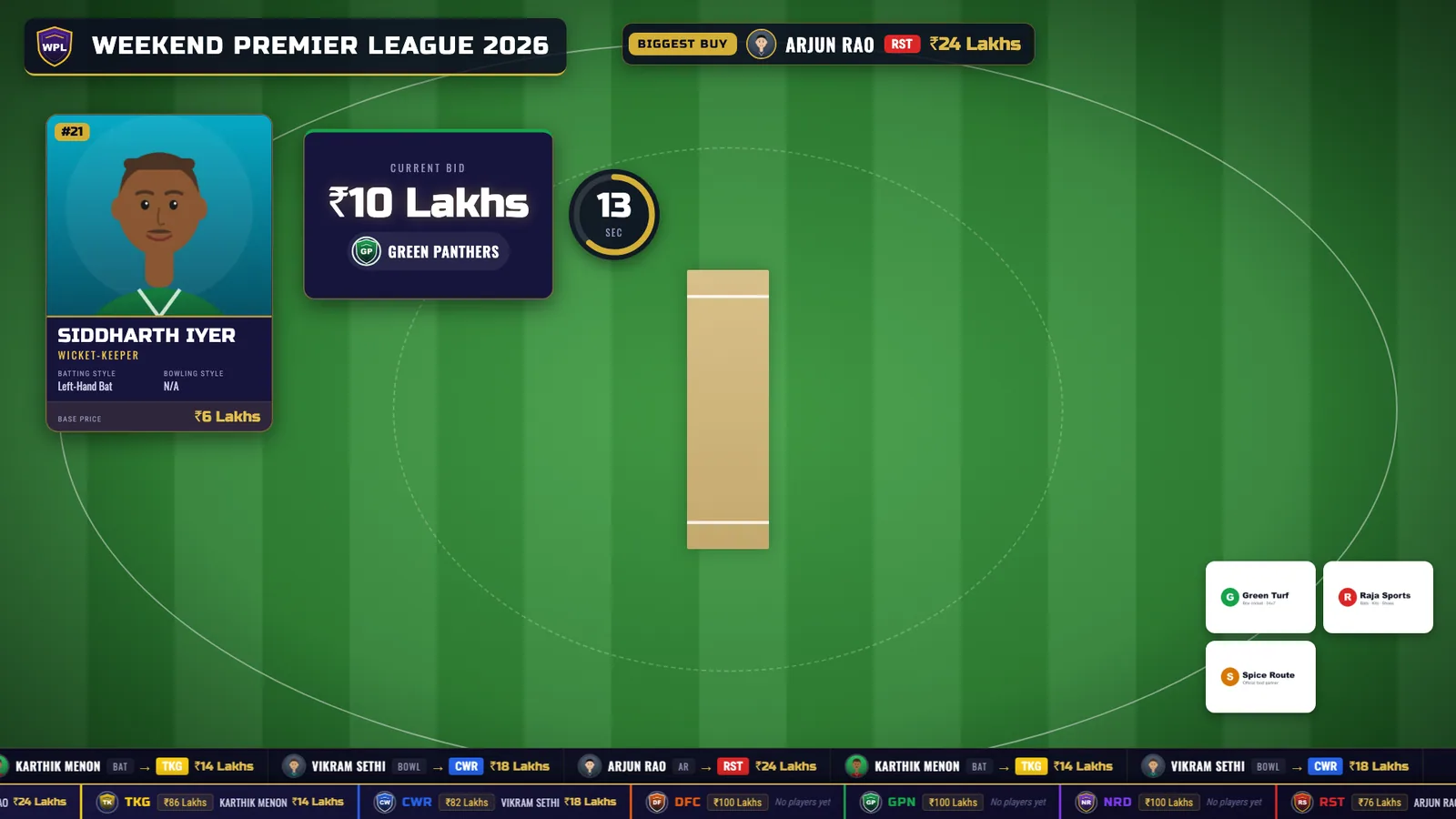
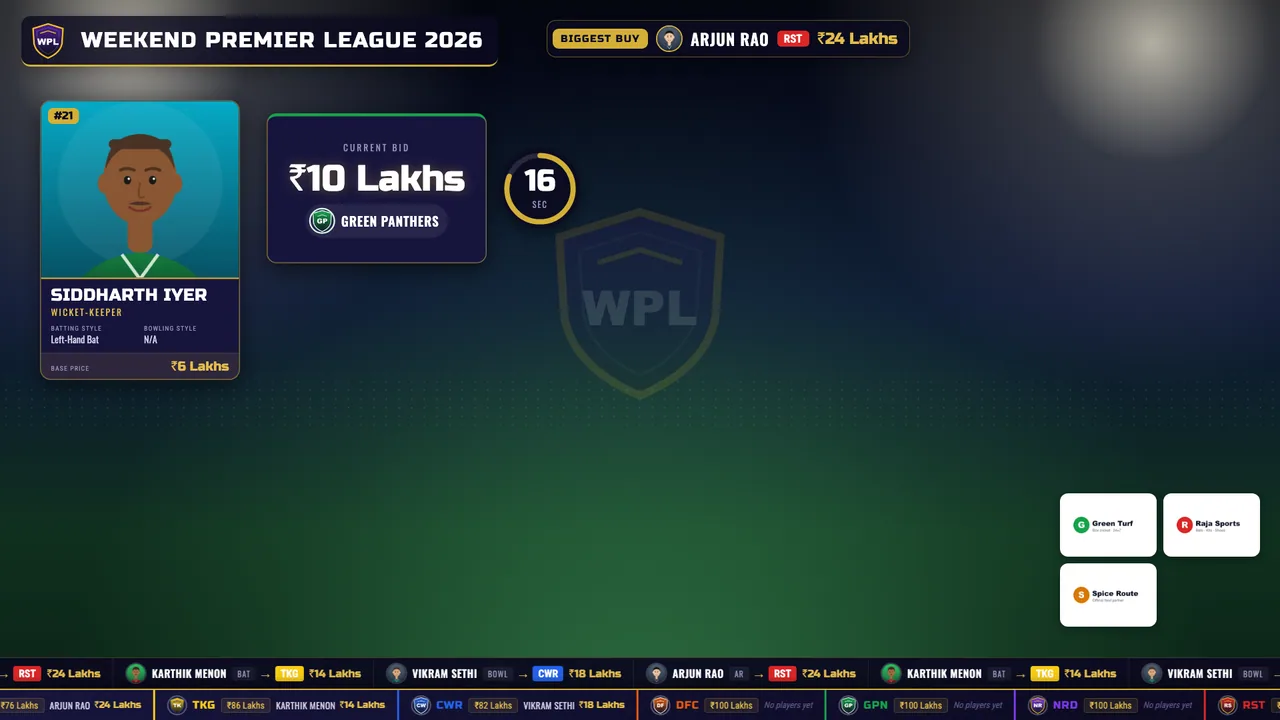
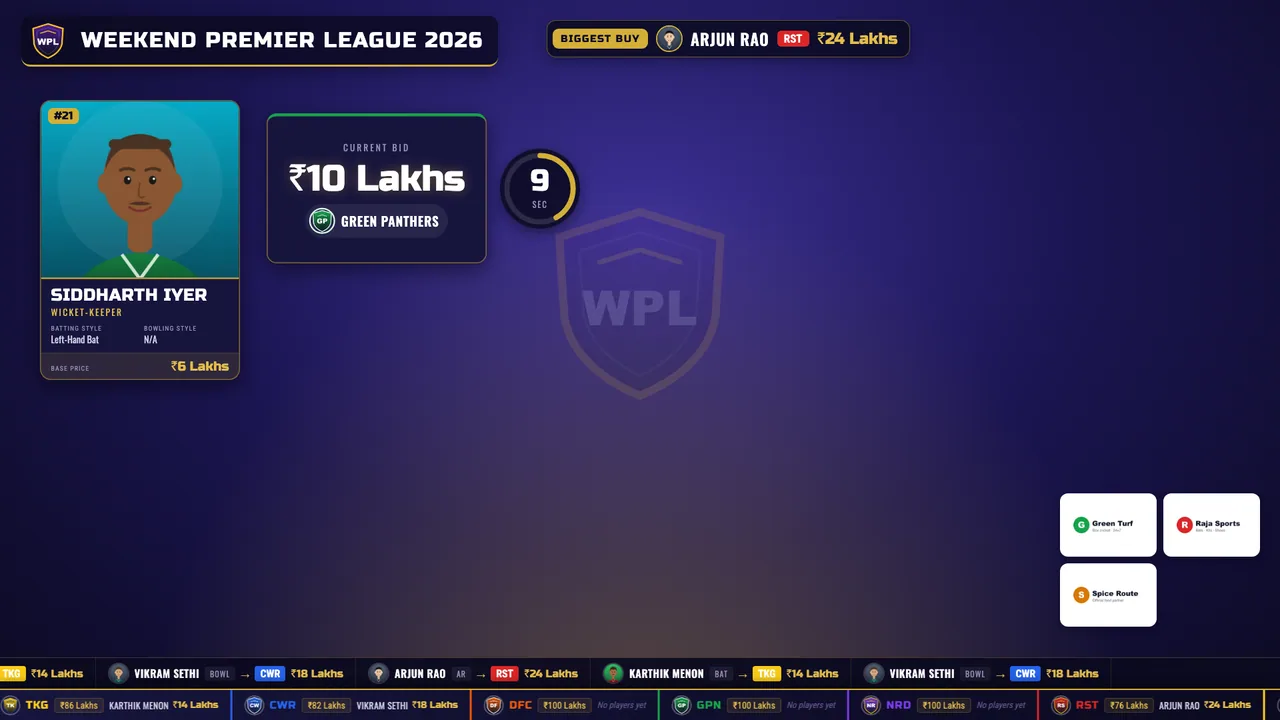
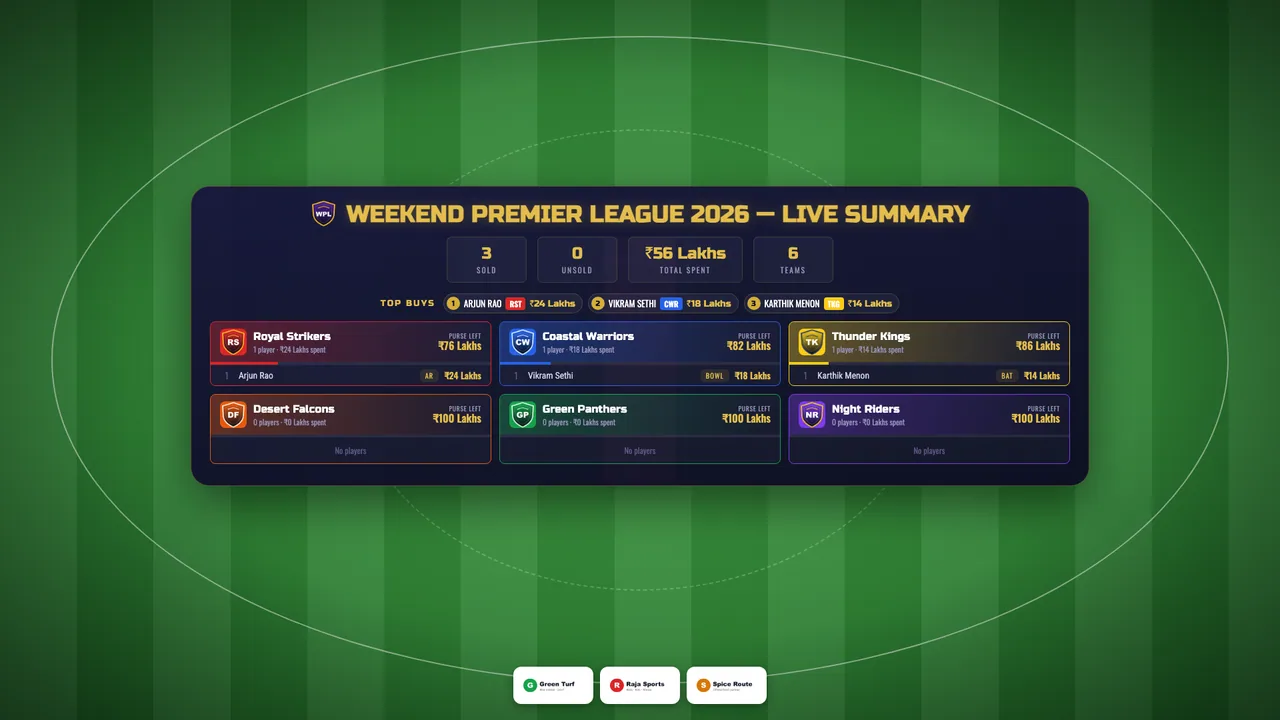
Cricket ground background: the outfield and the pitch from above
Which way suits your TV
| The screen at the venue | Best way | What you need |
|---|---|---|
| Chromecast, Google TV or Android TV | Cast from the Android app | Phone and TV on the same Wi-Fi |
| Android TV box (Airtel Xstream and others) | Cast from the Android app | Same Wi-Fi as your phone |
| Samsung or LG smart TV | TV link in the TV's browser, or HDMI | The TV on the internet, or a laptop and cable |
| Any TV or projector with HDMI | Laptop or phone with an HDMI cable | HDMI cable (USB-C adapter for a phone) |
| Any TV with a Chromecast plugged in | Cast from the app, or from Chrome | Same Wi-Fi |
Find your TV link in setup → Go live ("Venue TV"), or in the Android app's Show on a TV sheet, where you can copy it.
1. Cast from the Android app (Chromecast and Android TV)
The easiest way: no laptop and no cables. Your phone runs the auction and the TV shows it.
- Turn the TV on and make sure it is on the same Wi-Fi as your phone (not a guest network).
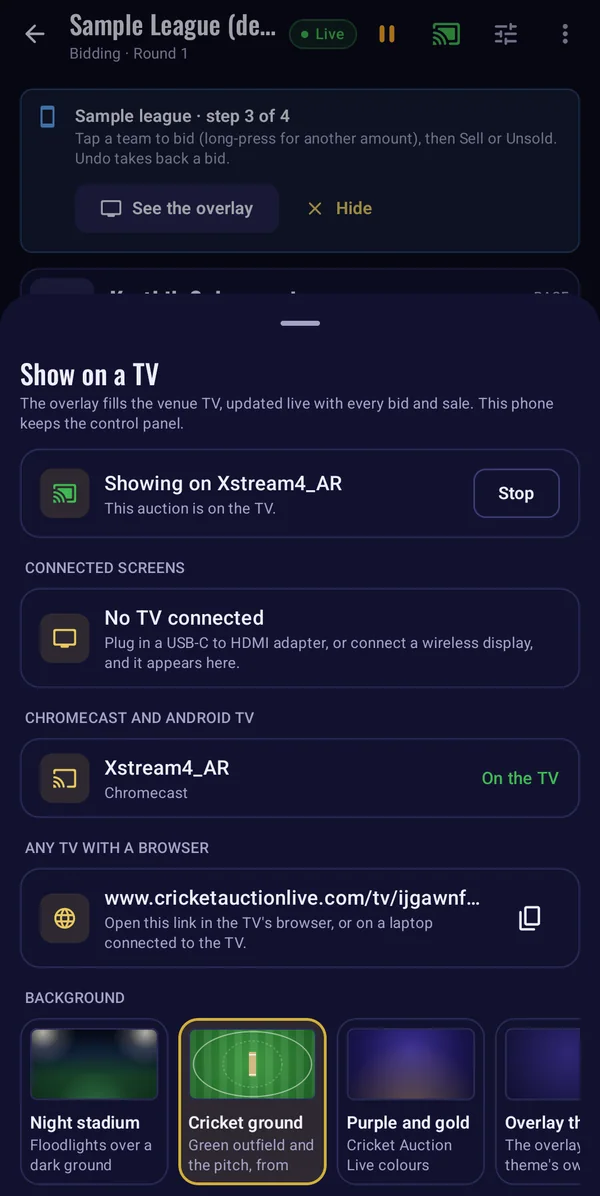
- In the app, open your auction's control panel and tap the TV icon at the top. You can also tap Show on a TV in Go live.
- Under Chromecast and Android TV, tap Show next to your TV. After a few seconds the TV shows your auction, and the sheet says Showing on your TV.
- Pick a Background at the bottom of the same sheet. The TV changes straight away.
- Run the auction as usual. To finish, open the sheet again and tap Stop.
The TV keeps showing the auction even if you switch to another app or lock the phone. Get the app on Google Play:
2. Cast from Chrome on a laptop
No app needed, and it works with any Chromecast or Android TV.
- Open your TV link in Google Chrome on the laptop.
- Open Chrome's menu (⋮) → Cast, save and share → Cast…, choose your TV, and under Sources pick Cast tab.
- Keep that tab open. Run the control panel in another tab or window, or from your phone.
Casting from the app is smoother, because the TV loads the page itself instead of copying the laptop's tab.
3. HDMI cable (any TV or projector)
From a laptop
- Connect the laptop to the TV or projector with an HDMI cable.
- Open the TV link and press F11 (Windows) or Ctrl ⌘ F (Mac) for full screen.
- To run the control panel on the same laptop, set the display to Extend (Windows: Win + P), drag the TV window to the TV, and keep the control panel on the laptop screen.
From a phone (Android app)
With a USB-C to HDMI adapter, the TV appears in the app under Connected screens: tap Show, and the TV shows the auction while the phone keeps the control panel. The phone needs video output over USB-C: many Samsung Galaxy phones and tablets and Pixel 8 and later have it, but many budget phones do not. A wireless display (Miracast) shows up in the same list.
4. A smart TV's own browser
For Samsung, LG and other smart TVs without Chromecast:
- Open the TV's browser (Internet on Samsung, Web Browser on LG).
- Type your TV link: cricketauctionlive.com/tv/ and your auction id. Bookmark it for next time.
- Leave it open. It updates by itself for the whole auction.
Some TVs dim or start a screen saver after a while. If yours does, turn the screen saver off in the TV's settings before the auction. If you want the bid and SOLD sounds on the TV, open the page with sounds on in the auction's settings; some TV browsers only play sound after the page has been clicked once.
TV backgrounds
On a TV there is no camera picture behind the overlay, so a background fills the screen. Choose it in setup → Overlay → Venue TV background, in the app's Overlay settings, or in the Show on a TV sheet while casting:
- Night stadium (the default): floodlights over a dark ground, with your league logo faintly in the middle.
- Cricket ground: the green outfield, boundary rope and pitch seen from above.
- Purple and gold: Cricket Auction Live's colours.
- Overlay theme: the colours of the overlay theme you picked in Settings.
- Plain black: best for projectors, or a darker room.
The player card, bid box and other parts keep the layout and card style from your overlay design, so the TV and the YouTube stream look the same.
Team owners join by QR
With phone bidding on, every team has a private bidding link. At the venue, open setup → Go live and tap QR next to a team: its owner scans the code with the phone camera, or in the app under Team owner → Scan QR code, and is ready to bid. In the app, the QR codes are in Go live too. Show each code only to that team's owner: anyone who scans it can bid for the team.
Venue checklist
- Test the TV the day before, on the venue's Wi-Fi if you can. Run a practice auction and cast it.
- Phone and TV on the same Wi-Fi network. Guest networks and some office Wi-Fi block casting; a phone hotspot works as a backup.
- Keep the phone running the control panel on a charger.
- Pick a background that reads well in the room: Plain black for projectors, Night stadium or Cricket ground for TVs.
- Turn the TV's screen saver and sleep timer off.
- Bring an HDMI cable as a backup, and have the TV link ready to open in a browser.
Troubleshooting
My TV is not in the app's list
Check that the TV is on and on the same Wi-Fi as the phone, not a guest network. If YouTube on the phone can cast to the TV but the app cannot see it, close and reopen the Show on a TV sheet, and check the app is up to date on Google Play. Samsung and LG TVs never appear here: use their browser or HDMI.
The TV says "Connected" but shows no auction
Tap Show again next to the TV. If it still waits, tap Stop, then Show: the TV reloads the auction.
The picture is too big or cut off
The TV page fits itself to any screen. If a TV browser shows it cut off, set the TV's picture size to Fit or Screen fit (often called "Just scan" or turning overscan off), then reload the page.
The TV stopped updating
The TV reconnects by itself when the Wi-Fi comes back. If it stays still for more than a minute, reload the TV link, or Stop and Show again from the app.
Frequently asked questions
Do I need the Android app to show the auction on a TV?+
Only for casting from a phone. Without the app, open the TV link on a laptop and connect it to the TV with HDMI, cast the browser tab from Chrome, or open the link in the smart TV's own browser.
Which TVs can I cast to?+
Any TV with Chromecast built in: Chromecast and Google TV streamers, Android TV and Google TV sets (Sony, TCL, Mi, OnePlus, Hisense, Philips and others), and Android TV boxes such as Airtel Xstream. They need to be on the same Wi-Fi as your phone.
My Samsung or LG TV is not in the list. Why?+
Samsung and LG smart TVs don't have Chromecast built in. Open the TV link in the TV's Internet browser, connect a laptop with HDMI, or plug a Chromecast or Google TV streamer into the TV.
Can I use a projector?+
Yes. Connect a laptop to the projector with HDMI and open the TV link full screen, or plug a Chromecast into the projector's HDMI port and cast from the app.
Can I stream to YouTube and show the TV at the same time?+
Yes. The TV, the OBS overlay, team owners' phones and the results page all follow the same auction, so use as many screens as you like.
Does the TV show the summary and sponsor break?+
Yes. Show summary in the control panel puts every squad and purse on the TV, on a panel over your background, and the sponsor break fills the TV with your sponsors.
Is the TV link private?+
It shows only what is on air, like the overlay link: no phone numbers or bidding links. The auction id in the link is random and cannot be guessed.
Run your next auction with Cricket Auction Live
Free up to 4 teams, from ₹299 for bigger leagues. Set up tonight, practise at full size before you decide, and get help from a real person on WhatsApp.
More guides
What to look for, and how Cricket Auction Live runs an IPL-style auction end to end.
A step-by-step guide: purses, base prices, bid increments, rules and auction-day checklist.
Run an IPL-style auction for your office tournament: formats, points budget, fair rules and a run-sheet.
A quick auction for turf and friends leagues: squad sizes, a points purse and simple rules.
Add the overlay to OBS, connect YouTube and go live.